
 For those of you searching the Internet to try and find a good or simple example of how port forwarding is done on a Cisco ASA 5500 series firewall (in this example, it is a Cisco ASA 5505 version 7.2) This post contains a working example of a port forwarding configuration on a Cisco ASA 5505 that's allowing RDP, TCP port 3389, through the firewall to from the Internet to the LAN side to a server. For new users to the ASA, how to configure a port forwarding rule on a Cisco ASA 5505 can be a more easily accomplished if the working configuration of a working ASA5505 is viewed. For many of the more seasoned users of the Cisco security appliance, port forwarding is very easy and need not be searching for answers.
Since the RDP protocol and the services running on windows XP and Vista client machines are derivatives of Microsoft's Terminal Server, the proceedure for setting up a port forward configuration for Microsoft terminal server is the same. The Cisco ASA5505 is not concerned what you are connecting to behind it, it's just concerned that its own configuration allows the right data and connection to go through.
Below is a GUI shot of a working RDP (Terminal Server) port forward configuration running on a Cisco ASA 5500 series firewall. The TCP port number 3398 is forwarded from the outside interface that's part of VLAN2 to the inside interface that's part of the VLAN1.
!
interface Vlan1 nameif
inside security-level 100
ip address 192.168.1.1 255.255.255.0
!
interface Vlan2 nameif
outside security-level 0
ip address dhcp setroute
Using the example below, just swap out the ip addresses shown in the static NAT translation for port forwarding RDP (terminal Server) with your own and you have a connection from the Internet to the LAN.
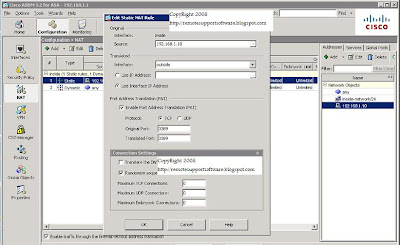

If you prefer command line, it's three lines of code at the command line that will do a simple port forwarding for RDP on the Cisco ASA.
Here they are:
access-list outside_access_in extended permit tcp any interface outside eq 3389
static (inside,outside) tcp interface 3389 192.168.1.10 3389 netmask 255.255.255.255
access-group outside_access_in in interface outside
Obviously, if you are looking to use the lines of code shown in the example above, change the 192.168.1.10 ip address shown above to be the address of the computer or server your forwarding RDP (terminal server) port to connect to. You can essentially use this example for terminal server RDP or for any other forwarding requirement you may have like ftp, http,smtp, etc.
Link to this post:
http://remotesupportsoftware.blogspot.com/2008/10/configure-rdp-port-forwarding-on-cisco.html
Link to this blog:
http://remotesupportsoftware.blogspot.com


