Thursday, January 18, 2024

Test if RDP (Remote Desktop Protocol) Port is Open using PowerShell

Using PowerShell Test-NetConnection to Test RDP (Remote Desktop Protocol) Port 3389


Open a PowerShell command line by entering into the windows search bar PowerShell and select PowerShell from the items list.  or if your more familiar with access the normal command line, open a command prompt and once opened, type PowerShell and hit enter. You will see your prompt change to PS C:\> 


 Within either the PowerShell prompt or PowerShell in a command window, enter the following command. Change the IP address or computer name to match the system you are testing for RDP (Remote Desktop Protocol) port 3389.  

PS C:\> Test-NetConnection ip-or-computername -Port 3389 

Hit enter, you'll see a green bar across the top for a moment stating "waiting for response".  

The result will look similar to the following. 


If successful, TcpTestSucceeded : True will be displayed on the bottom line of the output results. 

This method can be used to test for other open ports you may be inclined to check if connectivity over the network is available. 


Share/Save/Bookmark

Wednesday, June 15, 2022

Sync Local Active Directory Updates to Azure

Manual Azure AD Connect Syncing 


With an Azure AD connect server on site in your data center or in your server closet, you'd expect syncing to Azure from your local Microsoft AD would be quick. It is for password changes which are nearly instantaneous however other Active Directory property changes to user properties or group membership are not synced so quickly. Microsoft has restricted syncing to the lowest available frequency of 30 minutes.  

Update Azure AD by syncing manually

Logon to your Azure AD connect sync server and open a n elavated PowerShell command prompt. As shown in the image, enter the command Start-ADSyncSyncCycle -PolicyType -Delta

                             C:\>Start-ADSyncSyncCycle -PolicyType -Delta

the command when run will output a simple line indicating it ran successfully. If an error appears, search on the keywords or error code. The error will also be logged in the local Azure Sync server's Windows Eventlog.  So look in the windows log for more details if needed.  Common errors are related to  accounts used for the local system to interact with Azure. Issues with the Azure Sync server or other applications on servers and desktops can be resolved with support software. Software for Online computer support is commonly used over the Internet to access systems remotely and give technical support on-demand full access to the remote system to troubleshoot and resolve application problems. Online desktop support software is not limited to desktop computers but can be utilized to access servers remotely and even enable maintaining network devices. 

When the command is run , it will execute immediately and provide a success result as output. the changes on Azure however may take a few seconds to appear.  If the updates made in the local Active Directory don;t appear in Azure after waiting a long 15 minutes, there is another issue. You may try running the command again to accommodate slow local AD replication or force local AD replication. 

Speed-up Local AD Sync 

The following command will speed-up local Active directory replication. i sue it all the time on client domain controllers when i suspect a low replication process is preventing changes or additions to propagate through the domain. 
                                  repadmin /Syncall / APeD


Share/Save/Bookmark


.

Friday, April 29, 2022

No Access to vCenter VAMI UI


      No Access to vCenter VAMI


Share/Save/Bookmark

If the the UI (the vcenter FQDN hostname:5480) loads but you cannot login knowing the password is 100% accurate because for example you can login to the console or using SSH tool like Putty for remote access. 

The UI loads but login attempts fails to VAMI. This could be caused by the application service not being started.


Using the console or putty for access, login and run the following command to start the service. 

              # service-control --start applmgmt 

From the screen shot you could see that the command runs, starts the application management service and indicates the status as STARTED. 

This process worked for me perfectly however, during the process the root user for vcenter had been locked out do to too many failed login attempts. of course because repeated attempts to access VAMI UI, thinking it was the incorrect password or the password had been changed for root access, incorrect passwords were entered. 

The root account will lockout after 3 bad login attempts .  The default timeout before the account unlocks is 5 minutes for the root account of vcenter.  As long as the default has not been changed, wait another five minutes before trying to login even to the console for access or through Putty for access. 

You may also try the following command to reset the root password lock or wait 5 minutes. 

              pam_tally2 -–user=root --reset
                               

You can check if the default is still the lock out value. 

cat the file . 

      /etc/pam.d/system-auth


Look for root_unlock_time=300 in the output . The value of 300 means five minutes so just be patient. 


Sorry I don't have a screen shot for that step.  My session had timed out and it was lost. I know, i could have just re-created the problem to get the screen shot but didn't want to lock my root account again for a screen shot and i had to move on. It safe to say that readers of this post will have the technical experience to manage without that screen capture.  

The following is a great instructional document for installing vCenter vSphere by Dell EMC. Dell EMC PowerEdge Servers Installation Instructions and Important Information Guide


Provide better support to your end users and clients. Whether you're a one person business servicing your clients from small office or home, or a mid-sized to large MSP provider of remote IT services, 4RemoteSupport software for online desktop support  improves the level of service. Most MSP and and individual tech support services provide remote access support using more than one support software. 
Remote access software that requires an agent installed on remote computers for re-connections often costs more than software for online desktop sharing when required only. Agent based keeps a service running and usually incurs a charge per remote desktop. Non-agent based remote desktop client  software permits remote desktop connections when needed and usually and triggered by the remote desktop user. Most providers have both types of support tools used for different situations. 4RemoteSupport online desktop support software doesn't require any software or framework services preinstalled. It works with all browsers. No browser extensions or plugins needed. 


Sunday, February 15, 2015

Command Line to Get Dell Service Tag or HP System Serial Number

Share/Save/Bookmark

Get Dell Service Tag of a Server or Desktop Computer System using just a Command Line


Get a Dell service tag or HP serial number of a server or desktop computer system by using only a command line. Third party utilities or other OEM tools like Dell BMC are not required. Dell Open Manage tools or agents don't have to be installed. On an HP server, Server Manager or HP management agents don't have to be installed. On a Windows or Linux system (Linux command line shown further down in this post), the Dell service tag or board serial number of an HP server or desktop computer system can be displayed by using native Microsoft Widows Management commands. To get and display the Dell service tag of a system with windows installed (Windows XP or higher) simply open a command prompt window, also known as a command window, and enter the following command. 

C:\> wmic bios get serialnumber

Hit enter and on the next line will be displayed the Dell service tag or the HP serial number. Obtaining this information will help looking up the system, server or desktop computer, on the appropriate web-site, Dell or HP, to obtain drivers or other related software and warranty information. 

Alternatively, the following command will provide the same information: 

 C:\> wmic systemenclosure get serialnumber


The same Command line can be used to get the serial number or service tag of a white-box computer system. 

Getting the serial number or tag of a whitebox system is done the same way. Unfortunately, the results may not display the information you need because the manufacture must have populated the field that is queried with the Windows Management command. IN many cases, what will be displayed in place of the serial number or is "To Be Filled by O.E.M." .  


Using only a command line or shell to obtain the system serial number or Dell service tag on Linux

You may have the need to obtain a service tag or serial number of a Linux based computer system server or desktop. The idea and principles are the same With a simple command line display the serial number or service tag. Dell, HP, or IBM tools are not required. The command to get and display the serial number or service tag is different from windows of course but the results are similar. The following command line from a shell works on Linux and Cent OS, other distribution could and will work too but I only tested with these two distributions of Linux.

On Linux Execute the following command from a command shell to get Dell Service Tag

      # dmidecode | grep -i serial      
or 
      # dmidecode -t 1

 DMIDECODE may have to be installed first before the command will be successful. Again, no HP or dell or IBM tools are required.  
       
# yum -y install dmidecode


Friday, March 28, 2014

gpo-automatic-detection-of-intranet-security-warning-we-can't-verify-who-created-this-file
Share/Save/Bookmark

Automatic Detection of Intranet Security Not Working.

Error : Security Warning -  we can't verify who created this file.

Change the following setting on the local machine using local policy or use a GPO to configure this setting for an OU or domain.  What this setting does, and it worked perfectly, was to apply Intranet Security policy for any computer that is on the domain.

The automatic detection has an issue with shortcuts or urls that use the FQDN even if it the local domain. Setting this policy make that Autodetection work. This was a domain with a 2003 domain controller and a windows serer 2008 R2 domain controller. The GPO setting was configured using gpedit on the 2008 server. No additiona administrative templates or kits had to be added. Thi s was with the default admx files found on 2008 R2.

To set the policy setting:
Open gpedit on the Windows 2008 server > User configuration > Administrative templates > Windows components > Internet explorer > Internet control Panel > Security Page
   Enable "Turn on automatic detection of intranet"


Sunday, February 23, 2014

Dell Wyse Xenith Review for Citrix Fast Installation Zero Client


Zero client review | Wyse Xenith Zero clients for Citrix HDX


  • Superb boot time
  • Awesome speed
  • Detailed confirability
  • Easily manageable 
  • All settings easily accessible 

Wyse Xenith Zero clients for Citrix Installation and Speed Review


Installed fifteen Wyse Xenith Zero clients for Citrix HDX. That is not a large number of clients to install but it was the first of their kind that I was able to get my hands on. These clients were the best I have ever used.
I thought I admired the Windows Embedded client from Dell Wyse as those had installed 25 for another client prior to these Zero clients.

The embedded clients ere impressive. I thought those would be the best I would see but after installing the Wyse Xenith Zero clients for Citrix HDX , they were even easier and quicker to deploy. They boot up in seconds, about 5 to 8 , average (it was just lightning fast, at first I thought I was not booting them at all - you blink or look away for a second or two, you'll miss it)
               
Dell Wyse Xenith Zero client. 

The embedded clients have a longer boot time and have a desktop of an embedded windows operating system to take into consideration whereas the zero clients have only the Dell Wyse Zero Engine. The boot time for the zero client was about 5 seconds to a login form/page. That was a complete power cycle. Login is quick, access to admin features was very fast and easy too.

Dell Wyse Xenith Zero client Speed 

Admin features can be made to be displayed on the left side of the screen on mouse-over if required. In this case it was made to remain hidden. Accessing admin features was very fast too with most changes requiring a reboot, that was no problem as the reboot was so fast.

Access Wyse Xenith Admin Settings, How to Access admin mode on Dell Wyse Zero client


To access administrative settings just hit control + alt + delete. You'll be given options in a small window that is displayed. Choose display admin option button and restart. Once you reboot, which is very fast as mentioned, click on admin, then you have access to all the settings - and there are a lot of settings to customize the the thin client to you needs and specifications. Optionally, while restarting/rebooting, hold the shift key down on the keyboard. You will notice that the admin button stays after reboots and power cycles. To get rid of the admin button on the zero client, just hit control + alt + delete and select the option not to display the admin button.

The Dell Wyse Xenith Zero client has many Settings to fit any Environment


Wireless settings can be configured as well as standard wired network settings. The default domain of the client can be added. The default username and password if desired can be configured. Also so many display and and other settings such as the zero clients name on the network, resolution and even the settings by which to find and connect to a management server or servers. All settings can be done manually at the client per client of can be managed by Dell Wyse client management software.


Share/Save/Bookmark
 

Monday, January 02, 2012

IE9 Meet Your New Browser Welcome Page Tab Opens When IE9 Starts

IE9 Meet Your New Browser Welcome Page Tab Opens When IE9 Starts

This is a very interesting post. It involved IE9 and the Meet your new browser welcome page. It has been written with a solution by the author for windows 2008 R2 server but the same solution can be applied to windows 7.

Prevent Internet explorer Welcome Tab from Opening


IE9, although it looks very similar to IE8, is a different browser in many respects and in particular in regards to security. One of the differences hat can catch a terminal server admin (RDS windows 2008) a surprise is that cookies are disabled by default with IE9. Admins will now, one way to circumvent this problem would be to setup the default user profile before the suers begin logging in for the first time. One hey login, their local or roaming profile is created and used after that. Once the user profiles have been created, the solution for solving the cookie problem can be solved using a logon script.

Internet Explorer 8 and Internet Explorer 9 Welcome Page Tab


The meet your new browser welcome tab can also be very annoying and for less savvy computers users, cause them to call in for tech support.
One of the ways to solve the meet your new browser welcome page and also make the IE( setup question asking the user to select express setting or customer settings is to use local group policy editor on the server.

Thursday, December 02, 2010

HP NC373i: The network link is down


Share/Save/Bookmark

This error would appear in the system log of the server almost everyday in the morning - HP NC373i: The network link is down . Never during the day such as late afternoon or evening. The error would occur early in the am hours juts before and at times when employees juts start reporting to work. Event id4, source l2nd.
The driver version was not updated yet. The possible solution is checking and disabling power save mode for the NIC. The server was running windows 2003 server standard edition on an HP Proliant series server hardware platform. The next step will be to update the driver version. There have been TCP offload problems with some drivers. The version installed on this server was fairy new but an update was available.

Thursday, December 31, 2009

Supporting Technology with Technology.: Enable 24 bit color in RDP for XP or 2003 Server


Supporting Technology with Technology.: Enable 24 bit color in RDP for XP or 2003 Server

The option to connect to XP systems or windows 2003 servers with a color depth higher than 16 bits is available to be selected as an option before connecting to the remote computer. However, the RDP connection is never made at a color depth higher that 16 bits to neither a windows 2003 server or an XP desktop. There is a way to connect with true color 24 bit using rdp to XP or windows 2003 server.
A pre-defined default limit on the remote XP or windows 2003 server limits the color depth of RDP connections to 16 bit maximum on XP or windows 2003 server but can be changed to 24 bit true color by using group policy o nthe rmote computer or for all computers in a windows domain by linking a GPO to an OU or domain. How to configure the "server side" of remote desktop to accept connections at 24-bit true color.

Tuesday, November 24, 2009

Adding dsa.msc on Windows 2008 Server


Share/Save/Bookmark


How to add dsa.msc to windows 2008 server

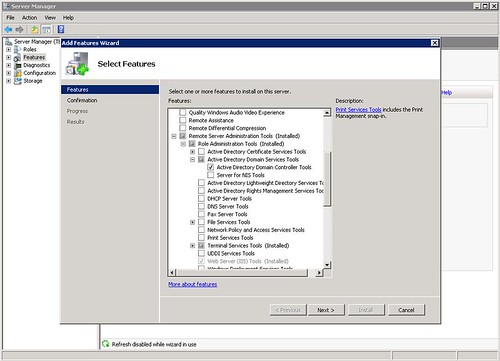
If you wanted to access active directory users and computers from a member 2003 server it was as easy as clicking start run then entering dsa.msc in the box and click open. That little useful feature is not added into a default 2008 server installation it needs to be added during the initial installation of the server or afterwards by adding a feature. The image in this post shows what options to select to add the dsa.msc command back into your member server. For people who use this a lot it's quite worth the several minutes to install. Adding the feature does not require a reboot.

Friday, October 23, 2009

Dell SAS 6iR Plug-in card, PCI Express x8, 2 CH, PC, Unix

Share/Save/Bookmark


Dell SAS6/iR Integrated SAS Controller Card Storage controller (RAID)- Serial ATA-300 / SAS- 300 MBps - Plug-in card, PCI Express x8, 2 CH, PC, Unix .

This RAID controller card from Dell only supports RAID 0 and RAID 1. It support 2 hot swap drives and has a combined 12Gbps throughput from 4 channels at 3Gbps. It's not a bad controller card for entry level servers and workstations but one of it's limitations is that it does not support RAID 5 or RAID 10 (RAID 0 + 1). I discovered this unfortunately when trying to configured RAID 10 (RAID 0 +1) in a PowerEdge r610 server.

Dell Storage Controllers


Dell Storage Controllers

Desktop and server remote access support software

Monday, October 13, 2008

Configure RDP Port Forwarding on a Cisco ASA 5505

Share/Save/Bookmark


Cisco ASA5505
For those of you searching the Internet to try and find a good or simple example of how port forwarding is done on a Cisco ASA 5500 series firewall (in this example, it is a Cisco ASA 5505 version 7.2) This post contains a working example of a port forwarding configuration on a Cisco ASA 5505 that's allowing RDP, TCP port 3389, through the firewall to from the Internet to the LAN side to a server. For new users to the ASA, how to configure a port forwarding rule on a Cisco ASA 5505 can be a more easily accomplished if the working configuration of a working ASA5505 is viewed. For many of the more seasoned users of the Cisco security appliance, port forwarding is very easy and need not be searching for answers.

Since the RDP protocol and the services running on windows XP and Vista client machines are derivatives of Microsoft's Terminal Server, the proceedure for setting up a port forward configuration for Microsoft terminal server is the same. The Cisco ASA5505 is not concerned what you are connecting to behind it, it's just concerned that its own configuration allows the right data and connection to go through.

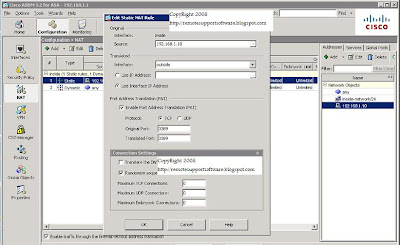
Below is a GUI shot of a working RDP (Terminal Server) port forward configuration running on a Cisco ASA 5500 series firewall. The TCP port number 3398 is forwarded from the outside interface that's part of VLAN2 to the inside interface that's part of the VLAN1.

!
interface Vlan1 nameif
inside security-level 100
ip address 192.168.1.1 255.255.255.0
!
interface Vlan2 nameif
outside security-level 0
ip address dhcp setroute

Using the example below, just swap out the ip addresses shown in the static NAT translation for port forwarding RDP (terminal Server) with your own and you have a connection from the Internet to the LAN.


If you prefer command line, it's three lines of code at the command line that will do a simple port forwarding for RDP on the Cisco ASA.

Here they are:

access-list outside_access_in extended permit tcp any interface outside eq 3389
static (inside,outside) tcp interface 3389 192.168.1.10 3389 netmask 255.255.255.255
access-group outside_access_in in interface outside

Obviously, if you are looking to use the lines of code shown in the example above, change the 192.168.1.10 ip address shown above to be the address of the computer or server your forwarding RDP (terminal server) port to connect to. You can essentially use this example for terminal server RDP or for any other forwarding requirement you may have like ftp, http,smtp, etc.


Link to this post:

http://remotesupportsoftware.blogspot.com/2008/10/configure-rdp-port-forwarding-on-cisco.html

Link to this blog:

http://remotesupportsoftware.blogspot.com


Thursday, May 15, 2008

Service Pack 3 Doesn't Install IE7

The fact that SP3 for XP doesn't install IE7 was a very good decision made by Microsoft. There are still too many applications that rely on IE7 and would break if installed with an update.


XPSP3 is just over 300 MB. This is a nice sized download and contains all previous hotfixes after SP2.


List of fixes:


Tuesday, May 13, 2008

Catastrophic Failure Message Display During Installation


Catastrophic failure for feature mini driver when installing, re-installing or removing the Fujitsu Windows scanning software.
If you get this message, while trying to install or remove the software from a desktop then open registry editor and do a search for the string windows scanning. Rename or remove the keys for these entries and especially the ones that have to do with the list of installed applications. The goal is to make Windows XP believe that this software is not already installed. Once this is complete then try installing the software again.
I had experienced this message while working with a fujitsu 5120 scanner. In windows, the scanner comes up as a fi-5120Cdj scanner and is popular with many medical manager applications.

HP Online Diagnostic - Memory


Tuesday, May 06, 2008

Information Technology Support - Adventure (Rated PG): Computer Desktop and Server Management


Are you considering offering your customers a NOC type service for their desktops and servers. Want to monitor your customer's networ kand data infrustructure to provide more support and generate more revenue by knowing about problems before your customers do. Managed service can be provided by a software package known as Kaseya.

Monday, February 11, 2008

Computer Support - Adventure (Rated PG): Computer Remote Support Software

Computer Support - Adventure (Rated PG): Computer Remote Support Software

Microsoft Live Meeting - Easy Assist Tech Support


Microsoft LiveMeeting


Prior Post:
Computer Support - Adventure (Rated PG): Computer Remote Support Software


LiveMeeting Demo:

https://www.microsoft.com/en-us?ql=3

LiveMeeting Trial Download (registration form) :
https://www.microsoft.com/en-us?ql=3

LiveMeeting is more than a conferencing and collaboration application. Hidden inside is online software application is computer remote support software for computer remote support.

I have used Microsoft's professional service, ie. technical support, on more than one occasion. I use heir per incident feature and have had decent experiences most of the time. The tool that Microsoft's tech support almost alwys has used to get remote access of the server I was working on has been their own product. That product is Easy Assist. Although there was a time that their support person used Live Meeting.

Although I have been, as many of have, around Microsoft and their products for so many years, it was the first time I saw their Live Meeting product at all. I believed at the time it  was for conferencing and collaboration online only. That day however I saw that it's a viable remote support tool as well.

Microsoft's easy assist computer support tool is one which I am much more familiar with. It works very fast and unfortunately because I deal with so many computer problems, I know where to go and what to do before the Microsoft technical support rep even has a chance to tell me. That product is less in features than Live Meeting but then again. It was not intended to be a collaboration and conferencing tool, providing technical support remotely is it's primary goal and purpose. The features I saw in Live Meeting, a product that is under the Microsoft product category of Office Online, was unbelievable. The current release is still Live Meeting 2007 which very much signals how advanced the product was at the time. I suspect there have been some cosmetic changes and back-end server bug fixes, and updates, etc., but the functionality in my opinion for even remote support over the web needed no updating.


Desktop remote support can be accomplished with Microsoft's LiveMeeting. The attendees are in a session with the presenter can optionally allow access to their applications (1 or more) for viewing or for remote control. This is useful feature and built-in tool of LiveMeeting as for demoing feature of a program of for online training and guidance. Tech support can use this feature too as they can access the desktops of the remote computers to show users how to perform specific task within an application, correct configuration errors or even install/upgrade new software.

The benefits are far reaching and the benefits out-way any of the negatives which there was only one that I saw. Microsoft LiveMeeting needs to install using the windows installer which in itself is not that bad. Where is can be come complicated, especially in regards to presentations. is that if a remote computer has a problem with the windows installer service on their computer desktop then Livemeeting will not start. This problem is present for many online apps. One of the ways to circumvent it or to overcome the possibility of this occurring is to have another method for the software, in this case computer remote support software that is imperative that it downloads and connects, is to download and install. Many applications use activex to add features to the browser or to give online access to more features for the desktop to utilize for the duration for the duration of the time the connection persists.


Remote Support Software

For fast access to clients' remote desktops, computers and servers there no better choice than remote support software. Remote support software helps technical support departments, support groups and companies get to the problems faster by using the web rather than traditional means for access computers for support.

Remote support on the web


Remote support on the web for remote computer access and desktop remote control support.

Wednesday, January 09, 2008

Hewlett Packard StorageWorks U320e (AH627A) Storage Controller and a Dell 2950 PowerEdge Server.

Hewlett Packard StorageWorks U320e (AH627A) Storage Controller and a Dell 2950 PowerEdge Server.


The Hewlett Packard StorageWorks U320e (AH627A) Storage Controller is not compatible with the Dell 2950 PowerEdge Server.

In a previous port I review software how software tools that give techs the ability to remotely access and remote control computers both on the LAN and the Internet, benefit both the organization the tech works for and the customer, client or user who is receiving the desktop support.
http://remotesupportsoftware.blogspot.com/2006/12/remote-support-softwarethere-are-many.html


This was an onsite customer support call:

In this post I want to tell the world (tech world) about a little problem with a Hewlett Packard StorageWorks U320e (AH627A) Storage Controller intended to be used with a tape autoloader In a Dell 2950. I hope everyone bookmarks this page and lets the world know about the compatibility problems of this card with the Dell 2950 Server.

The card simply does not work in the PowerEdge. It will work in a PowerEdge 2900 but not in the 2950 model (who knows why). HP finally confirmed the problem and they will be shipping me a new storage controller that will work with the 2950. The symptoms are the fans just operate at high speeds and do not reduce their speed and their is no video. There's no much you can do at this point. I updated the BIOS and every other thing that had an update for it from Dell's website for this service tag. It just would not work.

Now HP OEMs these cards and places their name on them. The manufacturer was unable to confirm that the Hewlett Packard StorageWorks U320e (AH627A) Storage Controller card would not work and Dell's support simply said the card is compatible and there's nothing wrong with the server. After speaking with HP support for several hours, it was determined that the Hewlett Packard StorageWorks U320e (AH627A) Storage Controller is not compatible with the Dell 2950 PowerEdge.

Link to this post:

http://remotesupportsoftware.blogspot.com/2008/01/hewlett-packard-storageworks-u320e.html