Sunday, February 23, 2014

Dell Wyse Xenith Review for Citrix Fast Installation Zero Client


Zero client review | Wyse Xenith Zero clients for Citrix HDX


  • Superb boot time
  • Awesome speed
  • Detailed confirability
  • Easily manageable 
  • All settings easily accessible 

Wyse Xenith Zero clients for Citrix Installation and Speed Review


Installed fifteen Wyse Xenith Zero clients for Citrix HDX. That is not a large number of clients to install but it was the first of their kind that I was able to get my hands on. These clients were the best I have ever used.
I thought I admired the Windows Embedded client from Dell Wyse as those had installed 25 for another client prior to these Zero clients.

The embedded clients ere impressive. I thought those would be the best I would see but after installing the Wyse Xenith Zero clients for Citrix HDX , they were even easier and quicker to deploy. They boot up in seconds, about 5 to 8 , average (it was just lightning fast, at first I thought I was not booting them at all - you blink or look away for a second or two, you'll miss it)
               
Dell Wyse Xenith Zero client. 

The embedded clients have a longer boot time and have a desktop of an embedded windows operating system to take into consideration whereas the zero clients have only the Dell Wyse Zero Engine. The boot time for the zero client was about 5 seconds to a login form/page. That was a complete power cycle. Login is quick, access to admin features was very fast and easy too.

Dell Wyse Xenith Zero client Speed 

Admin features can be made to be displayed on the left side of the screen on mouse-over if required. In this case it was made to remain hidden. Accessing admin features was very fast too with most changes requiring a reboot, that was no problem as the reboot was so fast.

Access Wyse Xenith Admin Settings, How to Access admin mode on Dell Wyse Zero client


To access administrative settings just hit control + alt + delete. You'll be given options in a small window that is displayed. Choose display admin option button and restart. Once you reboot, which is very fast as mentioned, click on admin, then you have access to all the settings - and there are a lot of settings to customize the the thin client to you needs and specifications. Optionally, while restarting/rebooting, hold the shift key down on the keyboard. You will notice that the admin button stays after reboots and power cycles. To get rid of the admin button on the zero client, just hit control + alt + delete and select the option not to display the admin button.

The Dell Wyse Xenith Zero client has many Settings to fit any Environment


Wireless settings can be configured as well as standard wired network settings. The default domain of the client can be added. The default username and password if desired can be configured. Also so many display and and other settings such as the zero clients name on the network, resolution and even the settings by which to find and connect to a management server or servers. All settings can be done manually at the client per client of can be managed by Dell Wyse client management software.


Share/Save/Bookmark
 

Monday, January 02, 2012

IE9 Meet Your New Browser Welcome Page Tab Opens When IE9 Starts

IE9 Meet Your New Browser Welcome Page Tab Opens When IE9 Starts

This is a very interesting post. It involved IE9 and the Meet your new browser welcome page. It has been written with a solution by the author for windows 2008 R2 server but the same solution can be applied to windows 7.

Prevent Internet explorer Welcome Tab from Opening


IE9, although it looks very similar to IE8, is a different browser in many respects and in particular in regards to security. One of the differences hat can catch a terminal server admin (RDS windows 2008) a surprise is that cookies are disabled by default with IE9. Admins will now, one way to circumvent this problem would be to setup the default user profile before the suers begin logging in for the first time. One hey login, their local or roaming profile is created and used after that. Once the user profiles have been created, the solution for solving the cookie problem can be solved using a logon script.

Internet Explorer 8 and Internet Explorer 9 Welcome Page Tab


The meet your new browser welcome tab can also be very annoying and for less savvy computers users, cause them to call in for tech support.
One of the ways to solve the meet your new browser welcome page and also make the IE( setup question asking the user to select express setting or customer settings is to use local group policy editor on the server.

Thursday, December 02, 2010

HP NC373i: The network link is down


Share/Save/Bookmark

This error would appear in the system log of the server almost everyday in the morning - HP NC373i: The network link is down . Never during the day such as late afternoon or evening. The error would occur early in the am hours juts before and at times when employees juts start reporting to work. Event id4, source l2nd.
The driver version was not updated yet. The possible solution is checking and disabling power save mode for the NIC. The server was running windows 2003 server standard edition on an HP Proliant series server hardware platform. The next step will be to update the driver version. There have been TCP offload problems with some drivers. The version installed on this server was fairy new but an update was available.

Thursday, December 31, 2009

Supporting Technology with Technology.: Enable 24 bit color in RDP for XP or 2003 Server


Supporting Technology with Technology.: Enable 24 bit color in RDP for XP or 2003 Server

The option to connect to XP systems or windows 2003 servers with a color depth higher than 16 bits is available to be selected as an option before connecting to the remote computer. However, the RDP connection is never made at a color depth higher that 16 bits to neither a windows 2003 server or an XP desktop. There is a way to connect with true color 24 bit using rdp to XP or windows 2003 server.
A pre-defined default limit on the remote XP or windows 2003 server limits the color depth of RDP connections to 16 bit maximum on XP or windows 2003 server but can be changed to 24 bit true color by using group policy o nthe rmote computer or for all computers in a windows domain by linking a GPO to an OU or domain. How to configure the "server side" of remote desktop to accept connections at 24-bit true color.

Tuesday, November 24, 2009

Adding dsa.msc on Windows 2008 Server


Share/Save/Bookmark


How to add dsa.msc to windows 2008 server

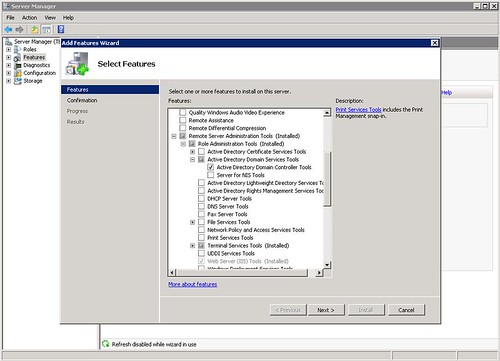
If you wanted to access active directory users and computers from a member 2003 server it was as easy as clicking start run then entering dsa.msc in the box and click open. That little useful feature is not added into a default 2008 server installation it needs to be added during the initial installation of the server or afterwards by adding a feature. The image in this post shows what options to select to add the dsa.msc command back into your member server. For people who use this a lot it's quite worth the several minutes to install. Adding the feature does not require a reboot.